
Get the most out of every ride.
Short guides to what the app does on a ride, and the parts that aren’t obvious at first. Start with hands-free capture and route options; those two change how the day goes.
Mark it without taking your hands off the bars
Gloves on, phone on the bar mount, nothing to look at. Ask Siri and the pin lands at your GPS spot — and it works with no signal on any iPhone that runs the app. Airplane mode, dead zone, bottom of a canyon: the command is understood on the phone, and SK Maps already has everything it needs to finish the job.
- Say “Hey Siri, mark a waypoint in SK Maps” — or name the type: hazard, campsite, fishing or trail, the built-in presets.
- Need to say why? “Hey Siri, mark a hazard with details in SK Maps” — Siri asks what to add, then saves the waypoint with your note on it.
- Starting out? “Hey Siri, start a trip in SK Maps” keeps the ride and everything you mark on it together.
Say the app’s name. “Mark a waypoint” on its own isn’t enough — Siri needs to know whose waypoint it is, so finish the sentence with in SK Maps.
One route, every way you might ride it
The technical line and the easy bypass. The spur to the lookout, if there’s time. Save them all on one route as options, then pick what you’re actually riding on the day. Switch options and the distance, climb and fuel estimate update with the choice; nothing is re-planned, because every option is already snapped and saved.
Three kinds of option. An add-on is an out-and-back or a loop that leaves the main line and returns to it — off until you switch it on. A fork is two ways round from one split: A is the main line, B the alternate, and choosing B replaces that stretch rather than adding to it. And a fork doesn’t have to come back — choose one that ends the route on its branch and everything the main line did after the split comes off the day.
- While you’re drawing a route, tap the branch button in the plan bar to fork from the end of the line. Draw the other way, tap Done, and you’re back on the main line at the split to carry on as normal. Fork again while you’re on a branch and the new one hangs off that branch.
- Already saved it? Open the route and tap Add a Fork or Out-and-Back in its OPTIONS card, then tap where the new way leaves the route and where it rejoins (or the same spot twice for an out-and-back), shape it, and choose Keep Both.
- On the day, flip the rows in the route’s Options list and the map and the numbers follow. Forks at the same split are either/or: turning one on turns the others off.
Rides, routes and tracks — which one is mine?
Every line in your library is one of three things, and the Lines tab groups them that way. A ride is where your tires went — recorded on this phone, one point every few feet. A route is where you want to go: planned in the app or received as an SK Maps file, and the only kind that carries options — forks and out-and-backs you switch on or off for the day. A track is a line somebody handed you — a rally, a friend’s GPX or KML, a line from another app.
Following is the same for all three: your line, your arrow, and a buzz if you drift off it. The app never re-plans a line under you or moves it onto a road it thinks is better — the dirt you loaded is the dirt you ride.
Ride: open it for the stats, follow it again, or export it as GPX for a friend.
Route: edit the line, flip its options, plan fuel, follow it, and share it as an SK Maps file so the other phone gets the same choices you had.
Track: follow it, export it, or change a stretch, reverse it or add a fork, as you would a route. Its recorded times are removed only after you confirm. Create route from this track still makes a separate route from the exact same line — nothing snapped to roads, nothing re-planned — and the original track is untouched.
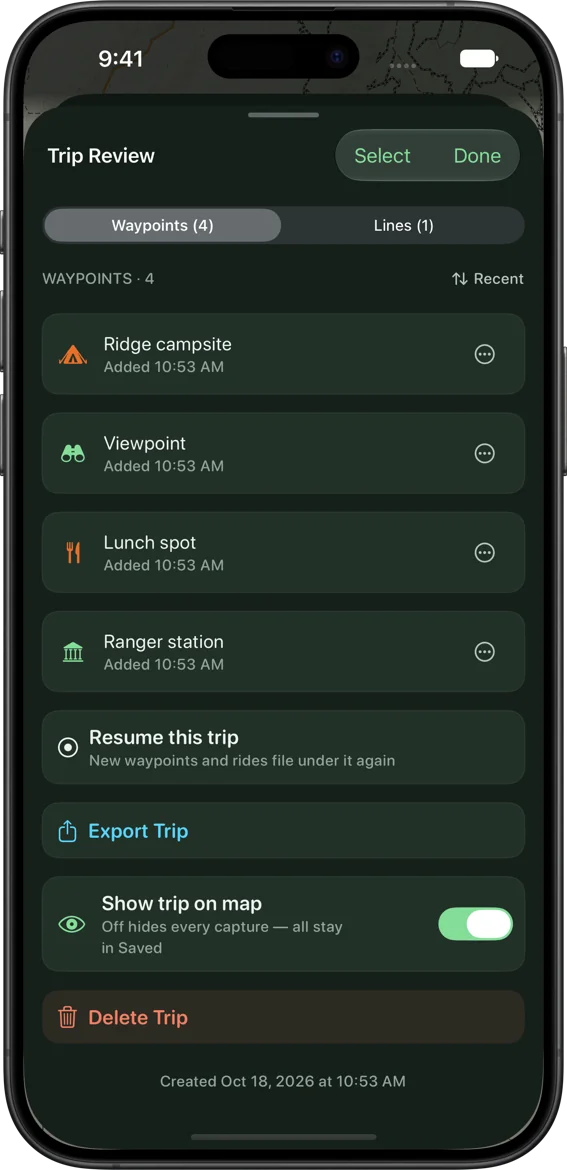
One trip holds your whole outing
This is the part people miss at first — then can’t ride without. Tap Start a trip and from that moment every waypoint and every recorded track files itself under that trip. No folders, no tidying. At camp you open the trip and the whole weekend is in one place.
- Tap Start a trip at the top of the map and name it.
- Ride — mark camps, hazards and the spots worth keeping; record your tracks. They all land in the trip automatically.
- Open Tools → Saved → Trips to review, then Share Trip to send the whole outing to your group as one file — an SK Maps file, or a GPX for any other app.
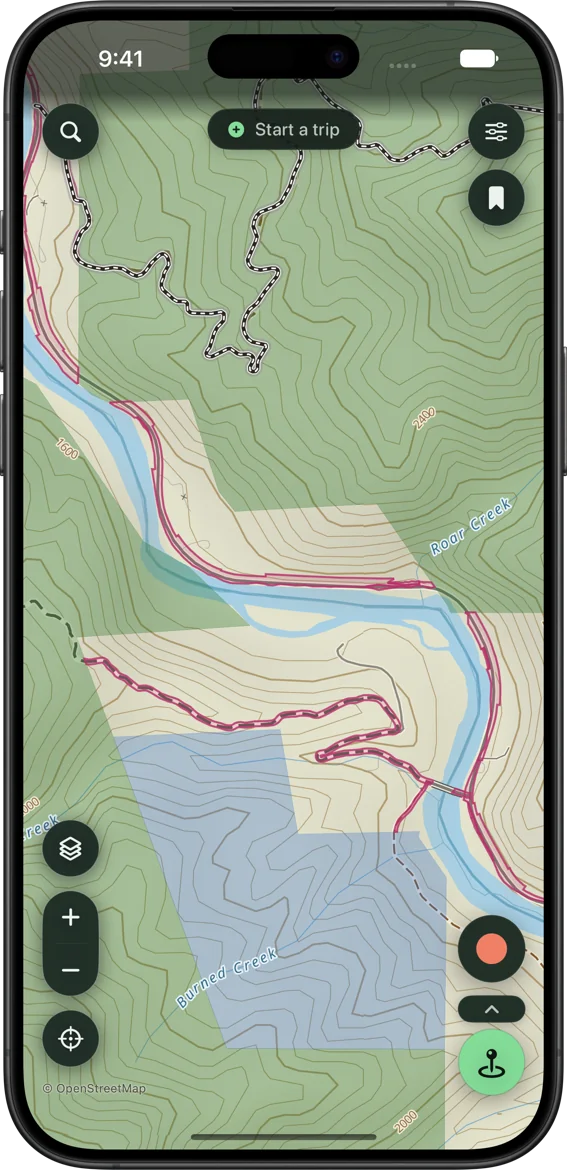
A topo that works with no signal
The SK Maps default base is a vector topo that renders on your phone — sharp at every zoom, with contours, terrain, and public land. Download any of the 50 states once and the map, search, and tap-to-identify all keep working in airplane mode.
- The vector base is already your map — nothing to set up.
- On a fresh install, the second setup screen offers the states first: your own is ticked from your location, motor vehicle use maps come with it unless you untick them, and you watch the download start before you reach the map.
- Any time after that, open Tools → Offline maps, pick your state (or draw a box around a smaller area), and download.
- Every state download includes its routing pack, so route planning works offline from the start. The only optional extra is the MVUM layer; satellite imagery can be added for a drawn area if you want it offline too.
- Head out. The downloaded map, your saved routes and waypoints, search, recording and following all keep working without service, and so does the elevation profile inside a downloaded state. The weather forecast, snow, smoke, air quality, fire perimeters and river readings wait for a signal.
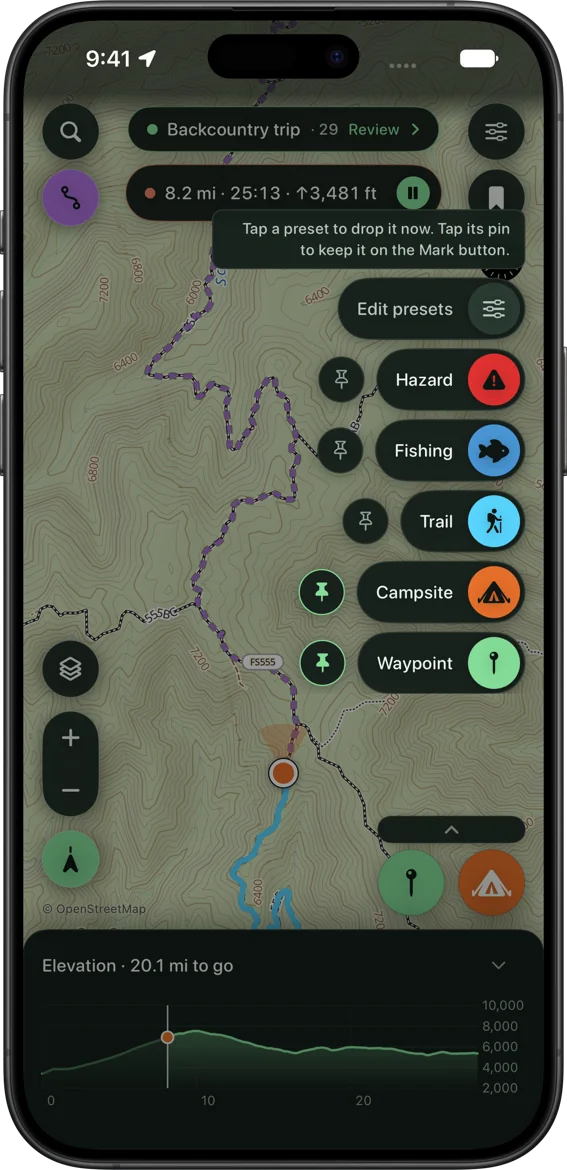
Drop a waypoint without stopping
Mark what you see the instant you see it — a campsite, a washout, a great overlook. Pin your two most-used presets to the button so a hazard or a camp is a single tap.
- Tap the green Mark button to drop a pin at your GPS spot, or long-press the map to mark anywhere.
- Hands full? Say “Hey Siri, mark a waypoint in SK Maps” — it works with no signal (voice capture is one of the paid features). More on voice.
- Add photos, notes, an icon, and a color — or tap Edit presets to build your own.
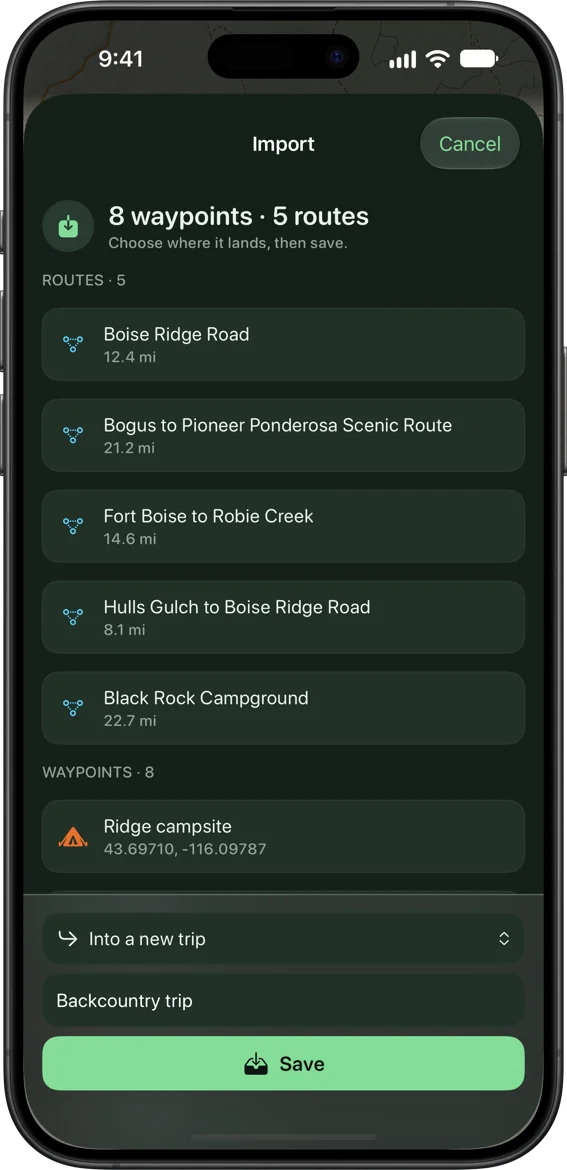
Bring a route you already know
A friend’s GPX, the organizer’s file from the group chat, or your whole library from another app: SK Maps imports GPX, GeoJSON, KML, and KMZ and keeps colors, routes, and icons where the file carries them. Use it next to the app you already have, or move over when you’re ready. A GeoJSON “All Data” export usually carries the most detail; GPX works too.
- Open a GPX or another supported file into SK Maps from Files, Messages, or AirDrop. Bringing a library from another app? Export it there first.
- Review what’s coming in, and choose a trip or just your library.
- Save. Re-importing the same file into the same place is safe — pins and lines that are already there are skipped, not doubled. If a file carries route options, the review screen and the confirmation both say what will and won’t come across, so you never have to count your own options afterwards.
- Adding options on one phone and importing on another tops the route up. The route itself is recognized and left alone, and any options it doesn’t have yet are added to the copy you already have — the ones it does have are left exactly as you set them, including which branch you chose.
- Imported as a track but want to plan on it? Open the track and tap Create route from this track — you get a plannable copy (fuel range, out-and-backs, forks) and the original track stays exactly as it came in.
More guides
The rest of the app, in the order riders tend to meet it.
If Siri won’t mark a waypoint
Almost always the same cause: iOS asks once whether to turn on SK Maps shortcuts, and it’s easy to dismiss. Until you say yes, every phrase comes back “Sorry, I don’t understand” with nothing to explain why. Open the Shortcuts app, find SK Maps under App Shortcuts and make sure they’re switched on — or check Settings → Apps → SK Maps. Then check the phrase itself: it has to end with in SK Maps. This isn’t a signal problem — the commands work in airplane mode once they’re switched on.
Options that hang off options
An option attaches to a line, not to the route as a whole — so a fork can hang off another fork, and off that one again. A nested option is listed underneath the one it branches from, and it’s only on the table if you took that branch first. Give each its own color and the map reads at a glance; the color carries into exported GPX, and the whole set travels with the route in backups and in the SK Maps file you share, so a friend on SK Maps gets the same choices you had. A plain GPX for another app or a GPS carries your main line plus each option as its own line; that app won’t know they were options.
When an option is grayed out
If the composed route doesn’t run past an option at all, no position of its control would change the line — so the control is grayed whichever way it’s set, and the row names the choice that’s in the way: “Not on the route while Fork 1 is on B.” The row still shows what that option would cost in distance and climb, so you can weigh putting the other choice back, and your setting on it is kept, not reset.
If a traced detour won’t attach
An option can only attach to a line the map is actually drawing, so a trace sometimes comes back with a reason. Both ends have to touch the route — the main line, or a fork you’ve switched on. Trace along an option that’s switched off and it says so, and offers to switch it on first; trace across a stretch a chosen fork has replaced and it points you at the line you can see. Because an option hangs off one line, both ends have to land on the same one — and on one of that line’s own points, so start and end at a bend.
Layers & identify
Switch on the layers you want — USFS roads, USFS trails, MVUM, rec sites, fuel, public land — then tap any road, trail, or parcel to identify it, including who owns the land. 14,000+ USFS campgrounds and trailheads are already on the map nationwide.
Organize with layers & tags
Split your saved data into Map layers and My Data, then build custom layers to group waypoints and tracks your way. Tag anything — search and filter the library by tag, bulk-tag a whole selection at once, and rename, merge, or delete a tag everywhere it’s used.
Record a ride
Tap the red Record button for live distance, climb, moving time, and top speed — on screen and on the Dynamic Island. Lock the phone; it keeps recording. If the phone dies, what was recorded up to then is saved and reopens with the app.
Plan a route & follow it
Drop points and snap to the road-and-trail network, get an elevation profile, then follow the line with off-route alerts that buzz before a wrong turn costs you ten miles, and reach a locked phone as a notification. Snapping runs offline once you’ve grabbed that state’s routing pack — SK Maps prompts you with the exact state and size while you plan, or add it when you download the state under Tools → Offline maps. Cross a state line and it’ll ask for the next pack too.
Fuel range & My Garage
Add your bike or truck to My Garage with its range — type the miles, or enter MPG and tank size and SK Maps does the math. Pick it while planning and the route colors green to amber to red by remaining fuel, then flags the last mapped gas before the gap. Detouring on a half-empty tank? Set it to ¾, ½, or ¼ and the range scales to what you’ve actually got. A saved route says whether it’s in range too — for the vehicle you picked, named on the row, and you can switch vehicles or turn it off right there.
River conditions
Turn on River Gauges in Layers and tap one for flow, water temperature, and trend charts from the nearest USGS gauge, stamped with how fresh the reading is. A gauge is context for a crossing, not a verdict; it needs a signal to update.
Back up & switch phones
Tools → Import & export → Export all data writes one file with everything — waypoints, tracks, trips, photos, settings.iCloud backup is on by default under your own Apple account (Settings → Back up to iCloud to switch it off). Restore on a new phone from iCloud, or by importing the file.
Go fully off-grid
No account needed. With your state downloaded, the map, your routes and waypoints, search, recording and following all work with no signal at all. Only the online layers and the forecast wait for one.